Free-product referral offers: Give friends a first product to try
You can now offer a free product to new friends through a Shopify referral campaign, with an optional bonus for the advocate who brings them.
The problem: A customer can tell a friend why they love your product. A product offer gives that friend a way to experience it for themselves.
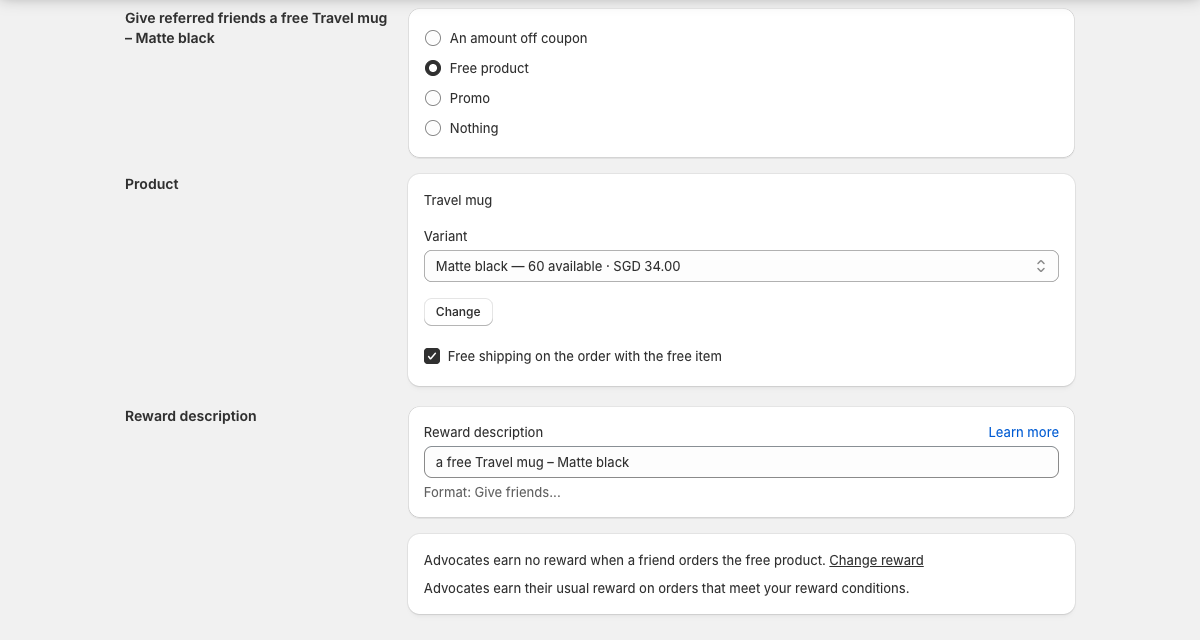
What’s new: Choose Free product as the friend offer, select one product variant and decide who pays shipping. You can add a coupon, cash or custom advocate bonus, paid once for each new friend who orders the free product. This bonus does not count toward tier rewards or the maximum reward amount. Free-product statistics appear on campaign Overview and each advocate’s page.
How to set it up
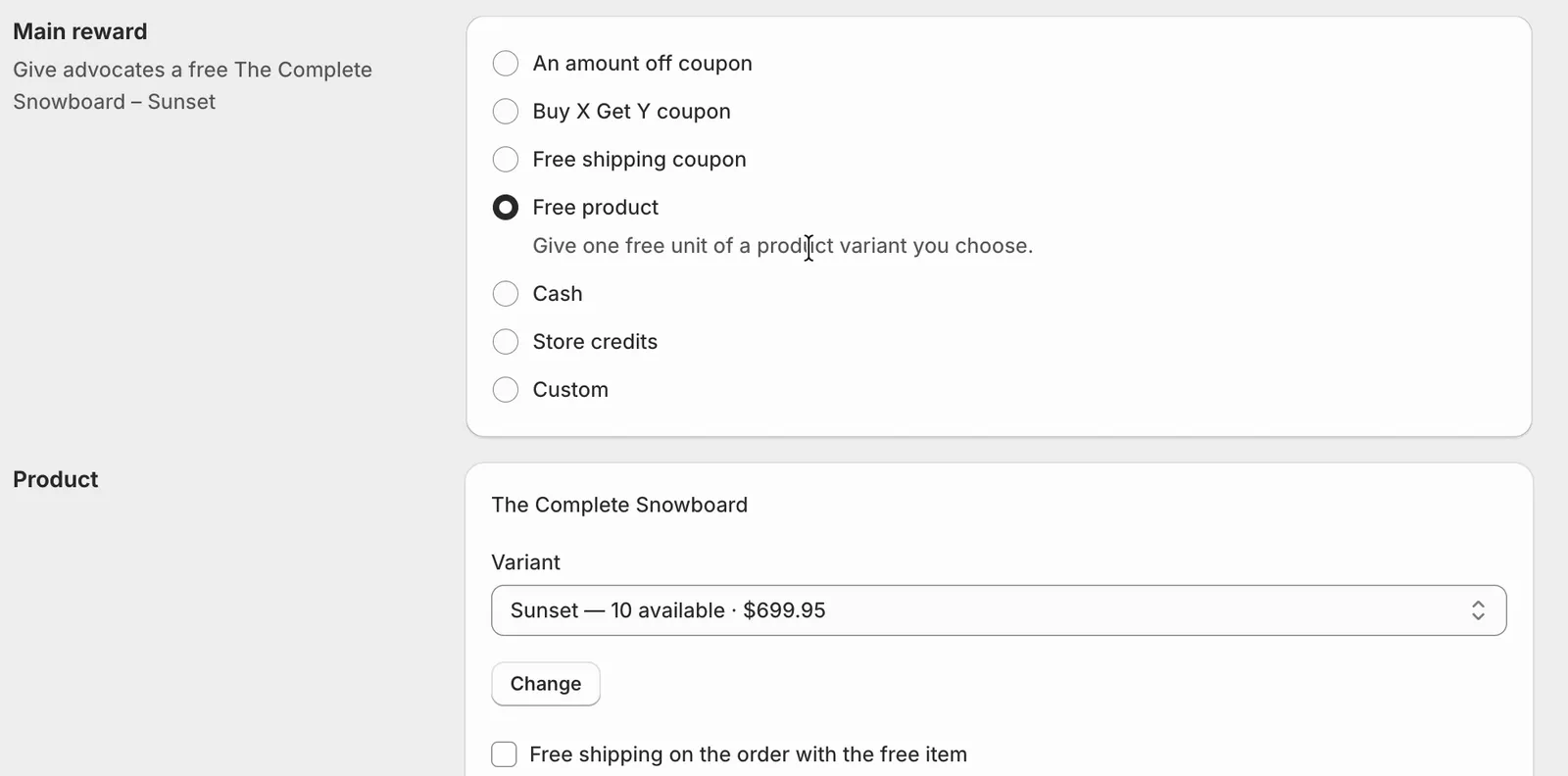
Choose the friend offer: In your Shopify referral campaign’s Friend offer, select Free product. Choose the product and variant, and review the free-shipping option.
Review the advocate bonus: Use Change reward in the friend-offer settings or the Free product bonus card on Advocate reward. Leave No reward or choose a coupon, cash or custom bonus.
Check the experience and results: Preview the friend offer and its shipping terms. Review free-product statistics on campaign Overview and the advocate’s page.
Free-product friend offers: Let affiliates introduce your product with a gift
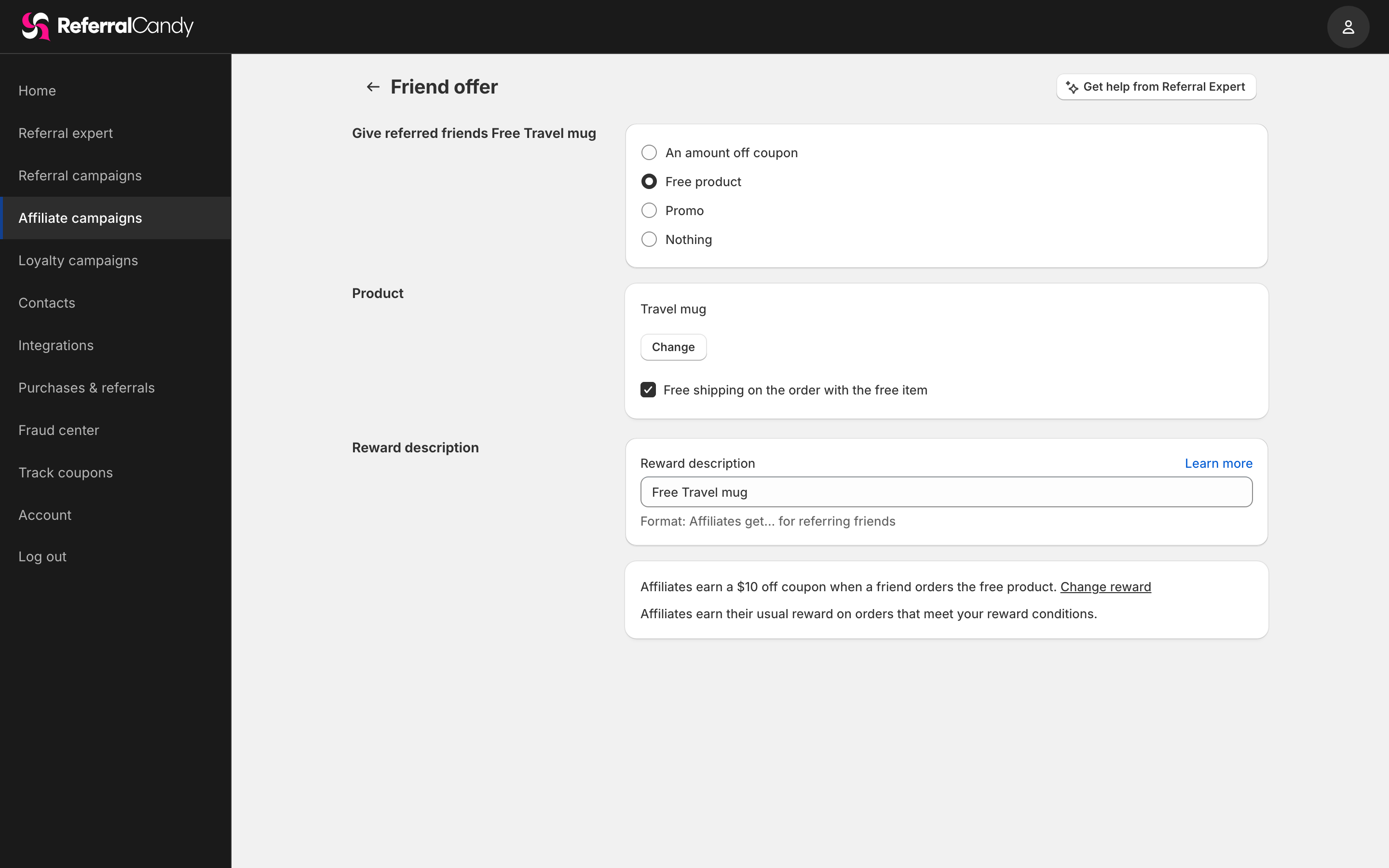
You can now give Shopify affiliates a free-product offer to share with new friends, and see which friends go on to buy.
The problem: A recommendation can make someone curious about your brand. A product offer gives them something concrete to try.
What’s new: Choose Free product as the friend offer in a Shopify affiliate campaign. Get it now takes the friend straight to checkout with the selected product 100% discounted. An optional Free product bonus rewards the affiliate once per new friend, outside tiers. It defaults to No reward; free-product orders earn this bonus rather than a commission, and the affiliate receives it when review ends.
Live for all Shopify affiliate campaigns since 5 November 2026 at 10:10 Madrid time. This 5 November release covered affiliate campaigns. Shopify referral campaigns received the offer separately on 12 November, excluding Recharge checkout. Other platforms are excluded. A 100% product discount does not establish free shipping or waived taxes.
How to set it up
Choose the friend offer: Open Affiliate campaigns → Friend offer, select Free product and choose your product.
Review the affiliate bonus: On Affiliate reward, leave Free product bonus at No reward or set an optional bonus.
Review orders and results: Approve orders in Purchases & referrals. Review free product orders, friends who later buy and bonus cost on campaign Overview and affiliate pages.
Email block editor: Shape your campaign emails around your brand
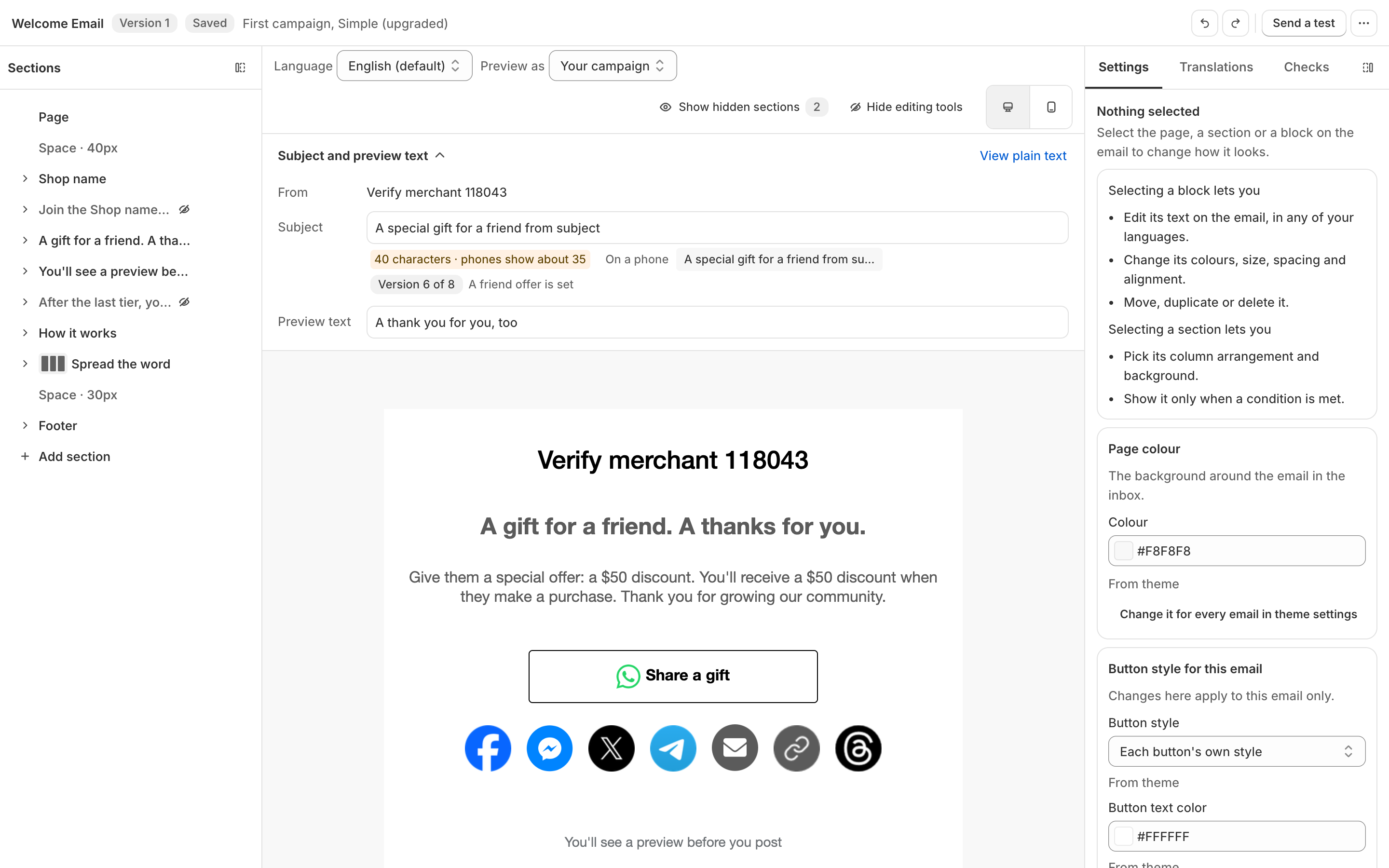
You can now edit your campaign emails directly on the email, rearrange their content with blocks and sections, or ask Referral Expert to prepare changes for your approval.
The problem: A fixed email layout can leave your invitation competing with the template. The new editor gives you control over the message and its arrangement.
What’s new: The v4 editor supports referral, affiliate and loyalty campaigns across all 17 email types. Add blocks and column layouts, use theme colours, set when sections appear and edit text for each campaign language. Phone previews and Checks help you review the result. Referral Expert proposes changes and saves after you agree.
New campaigns have started on v4 since 4 November 2026 at 02:55 Madrid time. Existing campaigns are switching in waves, retaining wording and a similar appearance; the old theme stays view-only. Developer-mode themes are excluded for now. Campaigns whose custom copy cannot carry over stay on v3 for review.
How to set it up
Open an upgraded email: In Theme Assets, choose an email card to open the editor.
Shape the email: Click text to edit it in place. Use Add a block or Add a section to arrange content and review its settings.
Review before saving: Check phone view and campaign languages, then review Checks before Save. Missing translations can still display English text.
Share button: Let advocates choose their sharing app
Your advocates can now tap Share to open their device’s share menu and choose Messages (SMS) or another available app to send their referral.
The problem: Customers use different messaging apps. The new button gives them another route to a friend alongside the existing sharing options.
What’s new: Share appears on supported stock themes: the advocate portal’s Sign-in/Share page and Dashboard, the stock sharing page and post-purchase widget, and the referral widget popup. Share clicks appear as Share button in the social shares card, reports, and contact activity.
Live since 3 November. The button appears only in browsers with a device share menu, including supported Safari, Chrome, Edge, and Samsung Internet browsers. Firefox on desktop and Chrome on Linux do not show it. Custom themes in developer mode, older stock themes, emails, and Shopify extensions are excluded.
How to set it up
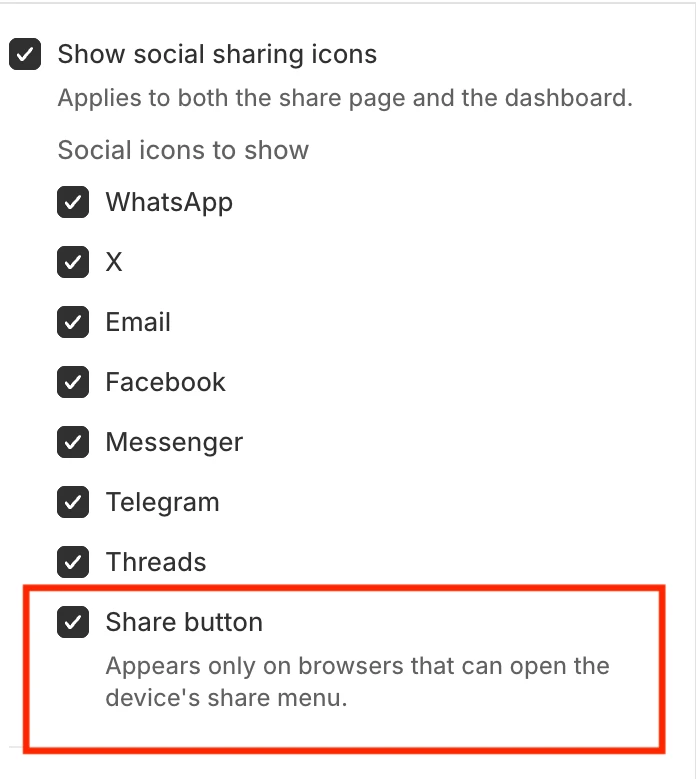
Open the theme editor: Find Social icons to show for the advocate portal.
Review Share button: Leave the option selected to show it on the portal, or clear it to hide it.
Check a supported browser: Open the referral page on your phone and tap Share to see the device’s available sharing options.
Hide the friend discount code: Keep referral links at the center of sharing
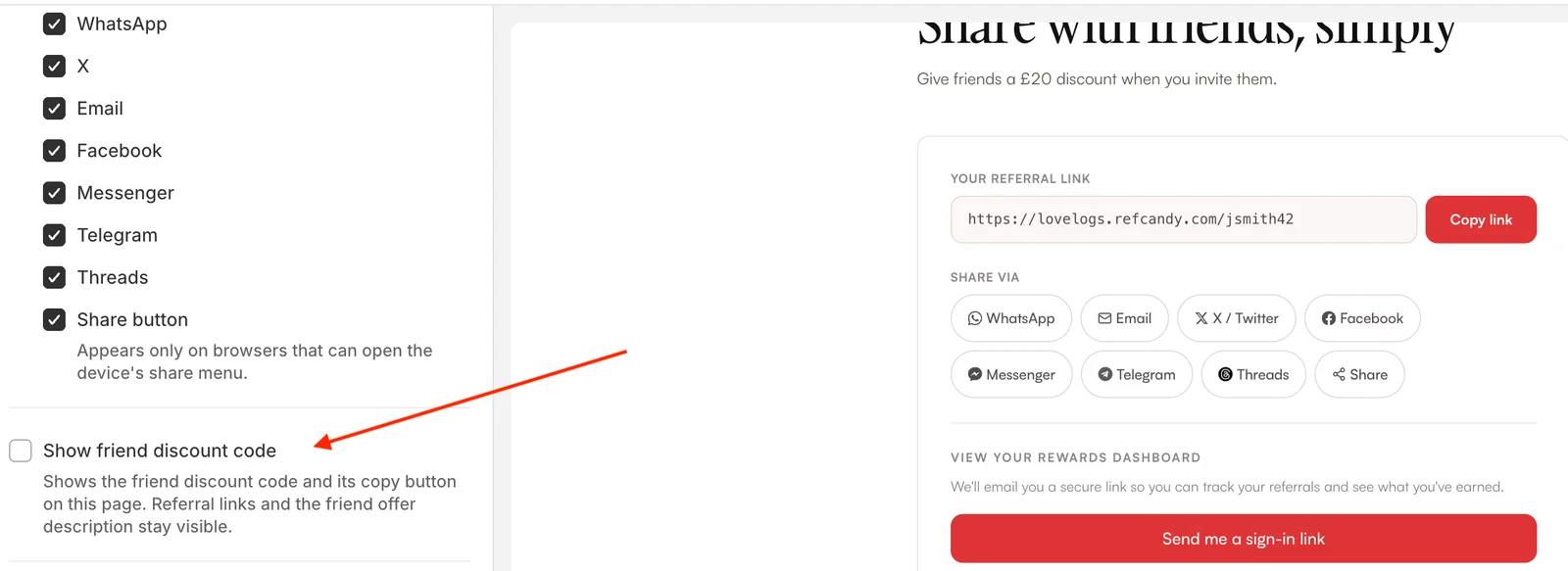
You can now hide the friend discount code on your referral pages, giving advocates a referral link to share while keeping the offer visible.
The problem: A visible discount code gives people something to copy separately from the referral link. If you are concerned about codes reaching coupon sites, you may prefer to keep the code out of your referral pages.
What’s new: In the theme editor, turn off Show friend discount code for each page you want to change: the advocate portal’s Home, Sign-in, and Share pages, the friend landing page, and the friend offer popup. This hides the code and its copy button. Referral links and the offer description stay visible, and the discount still applies at checkout through the referral link.
Available now to all merchants using stock themes. Codes remain visible until you hide them. Custom themes in developer mode ignore this setting. Hiding the code reduces its visibility on these pages; it does not guarantee that the code cannot be shared elsewhere.
How to set it up
Open the theme editor: Select the page where you want to hide the code.
Clear Show friend discount code: The code and its copy button are hidden on that page.
Repeat for other pages: Set the option separately on each supported page where you want the code hidden.
Free-product rewards: Thank advocates with an item from your store
You can now reward advocates and affiliates with a specific product from your Shopify store. They redeem it from a cart with the item and discount code already applied.
The problem: When you want to thank someone with a particular item, finding the right variant and entering a code adds steps to claiming the reward.
What’s new: Choose one product variant as the reward. Advocates click Redeem in their reward email or portal to open your store with that variant in the cart and the code applied. The advocate dashboard shows a Free product card with the product name and a Redeem button.
Available now to all ReferralCandy merchants on Shopify. Each reward supports one product variant. Existing coupon rewards work as before.
How to set it up
Advocate reward → Edit reward settings: Open your referral campaign’s Advocate reward page and edit the relevant tier.
Main reward → Free product: Click Select product, choose the item, and select its Variant.
Review and save: Check the reward description and optional Free shipping on the order with the free item setting, then click Save.
Squarespace Extensions: Find ReferralCandy for your store
You can find ReferralCandy on Squarespace Extensions and explore a referral program for your Squarespace store.
The problem: When customers recommend your products, you need a clear way to connect their introductions with the orders they bring. A referral program gives you a repeatable invitation to share and a way to recognize eligible referrals.
What’s new: The Extensions listing gives you another place to discover ReferralCandy and review the integration. You can connect your store directly from ReferralCandy, without pasting a tracking code into your website. The connection supports percentage and fixed-amount friend offers. Referred friends must enter their offer code at checkout so the purchase can be matched to the customer who introduced them.
Rewards remain subject to your campaign conditions and review process. If you already use the older tracking-code setup, review the current Squarespace integration guide before changing your installation.
How to set it up
Integrations → Squarespace: Open the Squarespace integration in ReferralCandy.
Connect with Squarespace: Sign in and choose the website you want to connect.
Allow: Review the access request, select Allow, and confirm that ReferralCandy shows Connected.
Product gifts: Thank advocates with a free product from your store
You can now give advocates and affiliates a free Shopify product as a campaign benefit, including a welcome gift when they join.
The problem: When you want to give a specific item, a discount on a future purchase does not express the same thank-you. Product gifts let you choose the item itself.
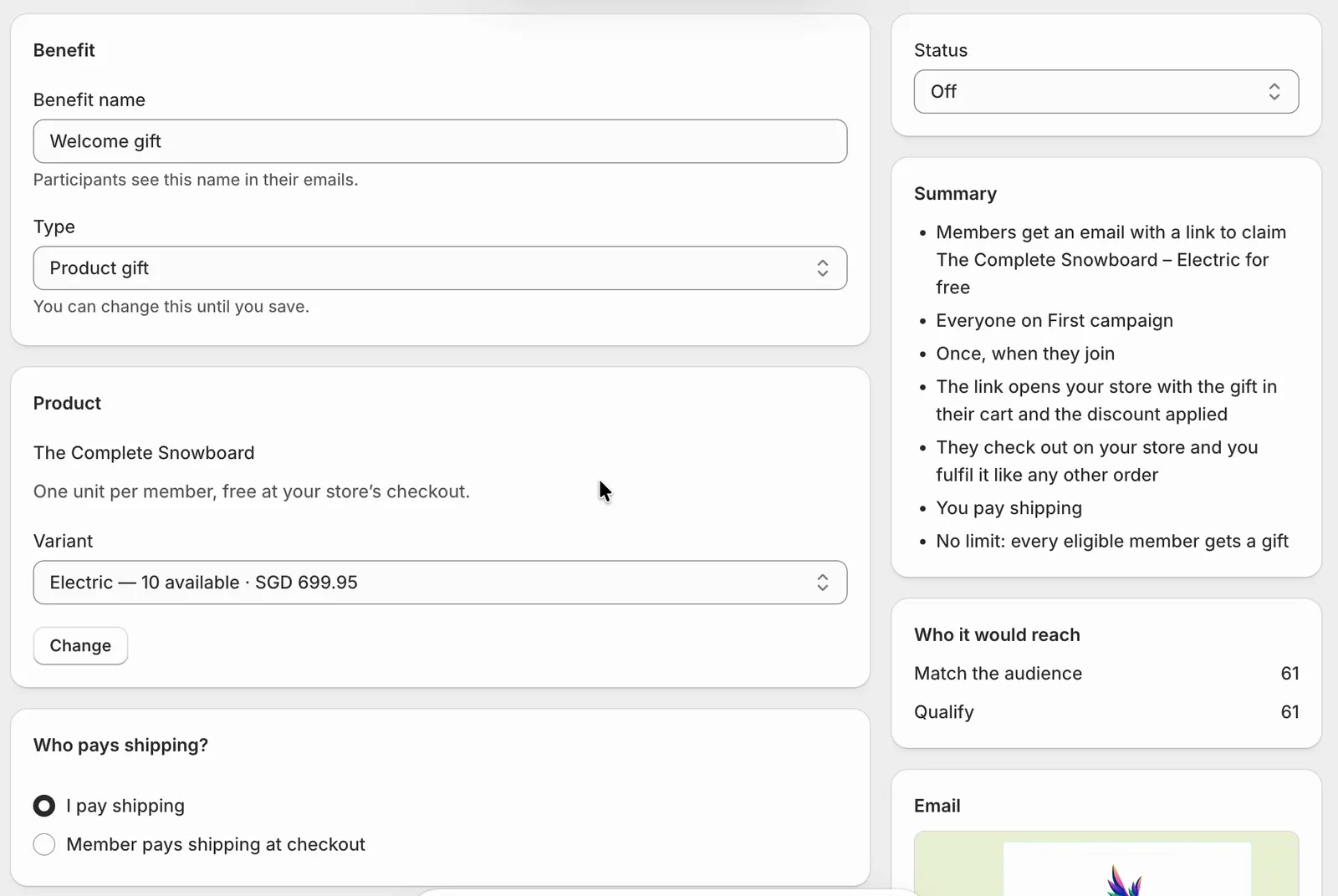
What’s new: Select a Shopify product and variant. The dropdown shows stock and price; out-of-stock variants cannot be selected. Members receive an email with a claim link that opens your store with the gift in their cart and the discount applied. They check out, and you fulfill the order. You choose whether your store or the member pays shipping.
Available now to all ReferralCandy merchants on Shopify. Product gifts are not available for non-Shopify stores.
How to set it up
Benefits → Add benefit: Open your campaign’s Benefits page and choose Welcome gift.
Product gift: Name the benefit, select your product and variant, and review shipping, code expiry, audience, timing, and gift limit.
Save and turn on: Save, set Status to On, and save again. Review whether to include existing eligible advocates, then confirm Turn on.
ReferralCandy MCP: Ask your AI agent about your referral program
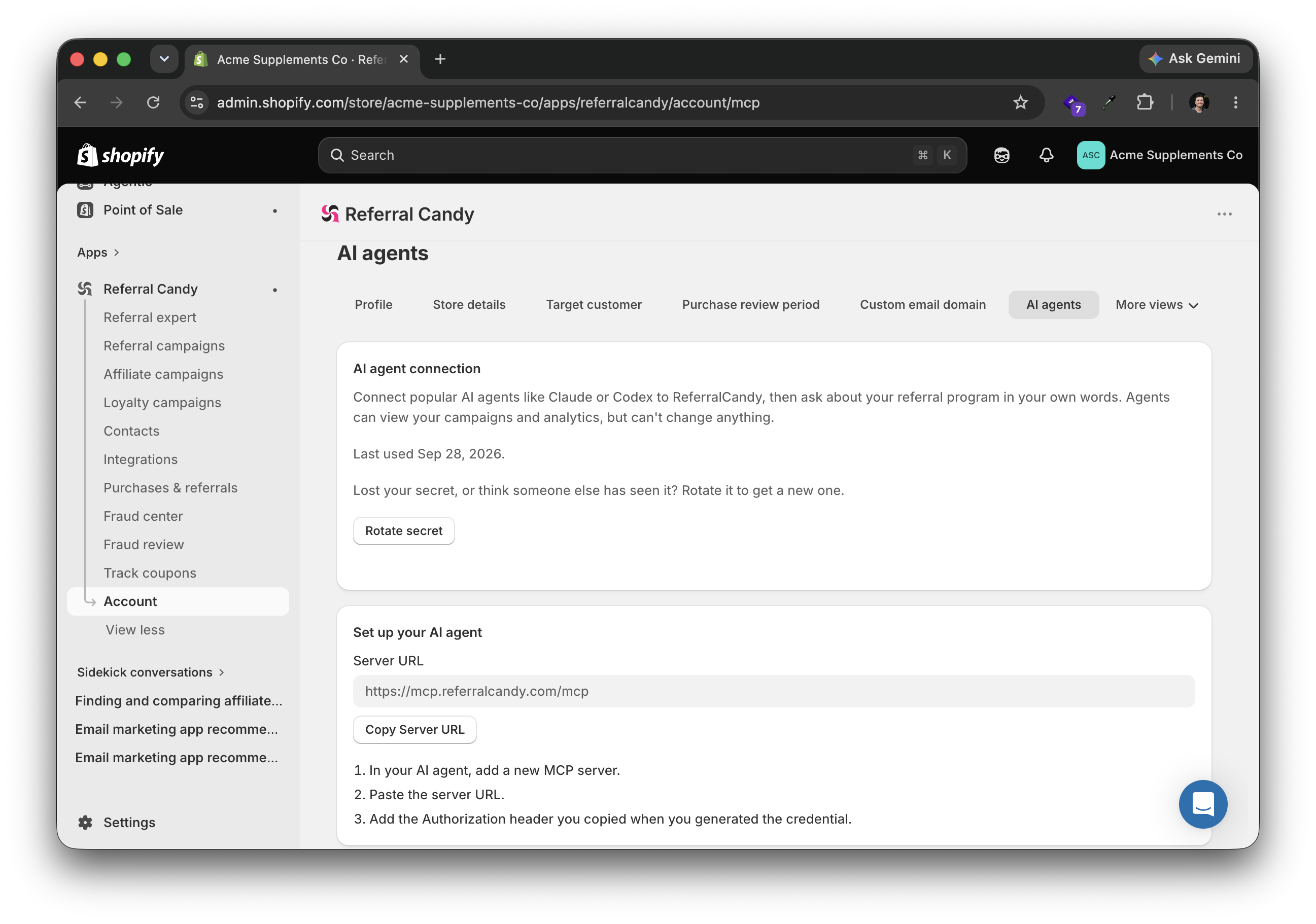
Connect AI agents like Claude or Codex to ReferralCandy through MCP (Model Context Protocol) and ask about your referral program in your own words. Four tools are available at launch:
List campaigns — See your ReferralCandy campaigns
Get campaign performance — Ask how your campaigns are performing
List referrals — View referrals from your program
Send feedback — Share feedback through your AI agent
ReferralCandy MCP is now available to all merchants. Agents can view your campaigns and analytics without changing your referral program. More analytics tools are on the way.
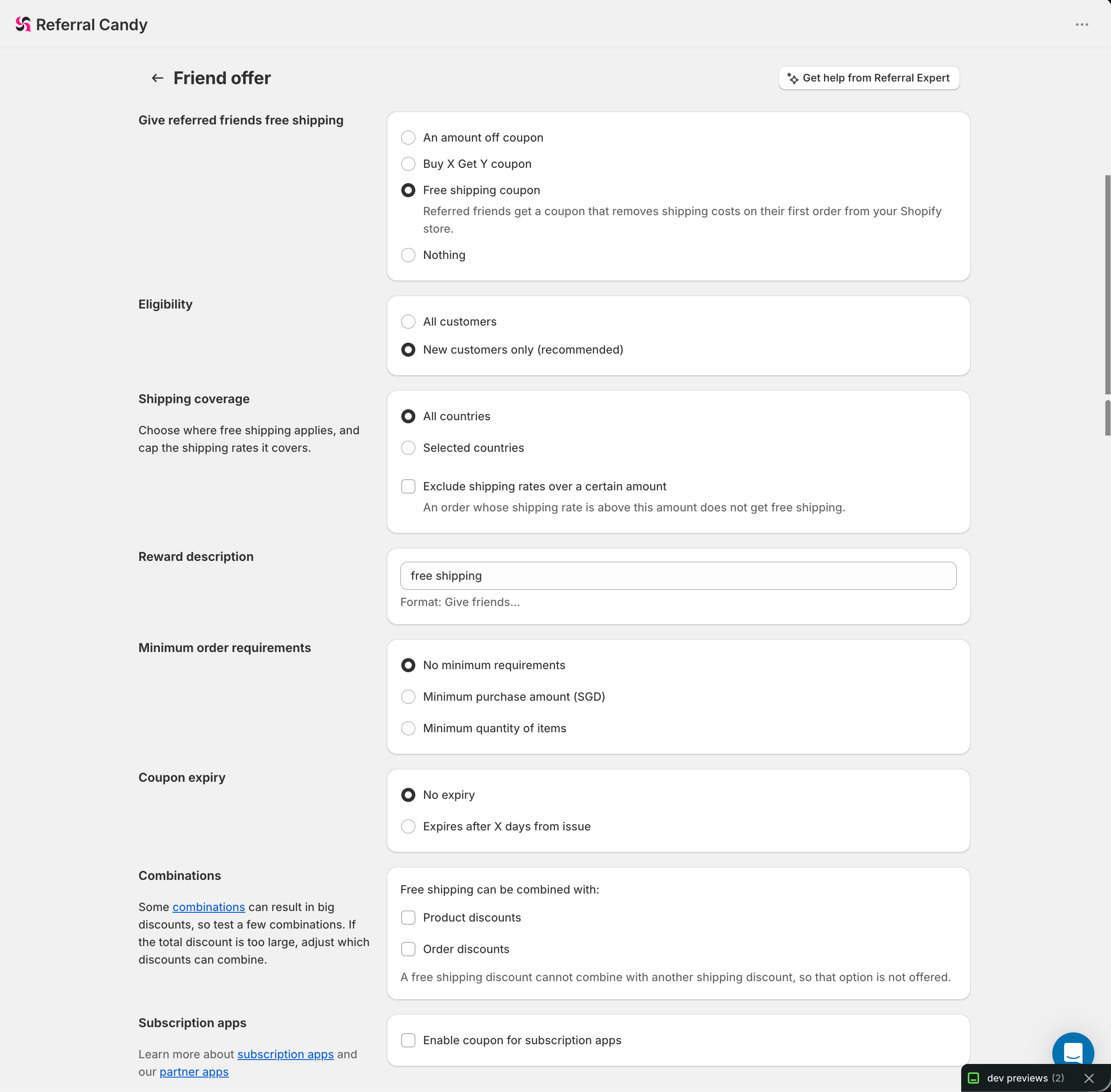
Free shipping offers for referred friends on Shopify
Shopify merchants can now reward referred friends with free shipping on their first order.
Customer Eligibility — Offer free shipping to all referred friends or limit it to new customers
Flexible Shipping Coverage — Apply the offer to all countries or selected countries, with an optional maximum covered shipping rate
Order Requirements & Expiry — Set a minimum purchase amount or item quantity, and choose whether the coupon expires
Discount Combinations — Choose whether free shipping can be combined with product or order discounts
Free shipping friend offers are now available to all ReferralCandy merchants on Shopify.
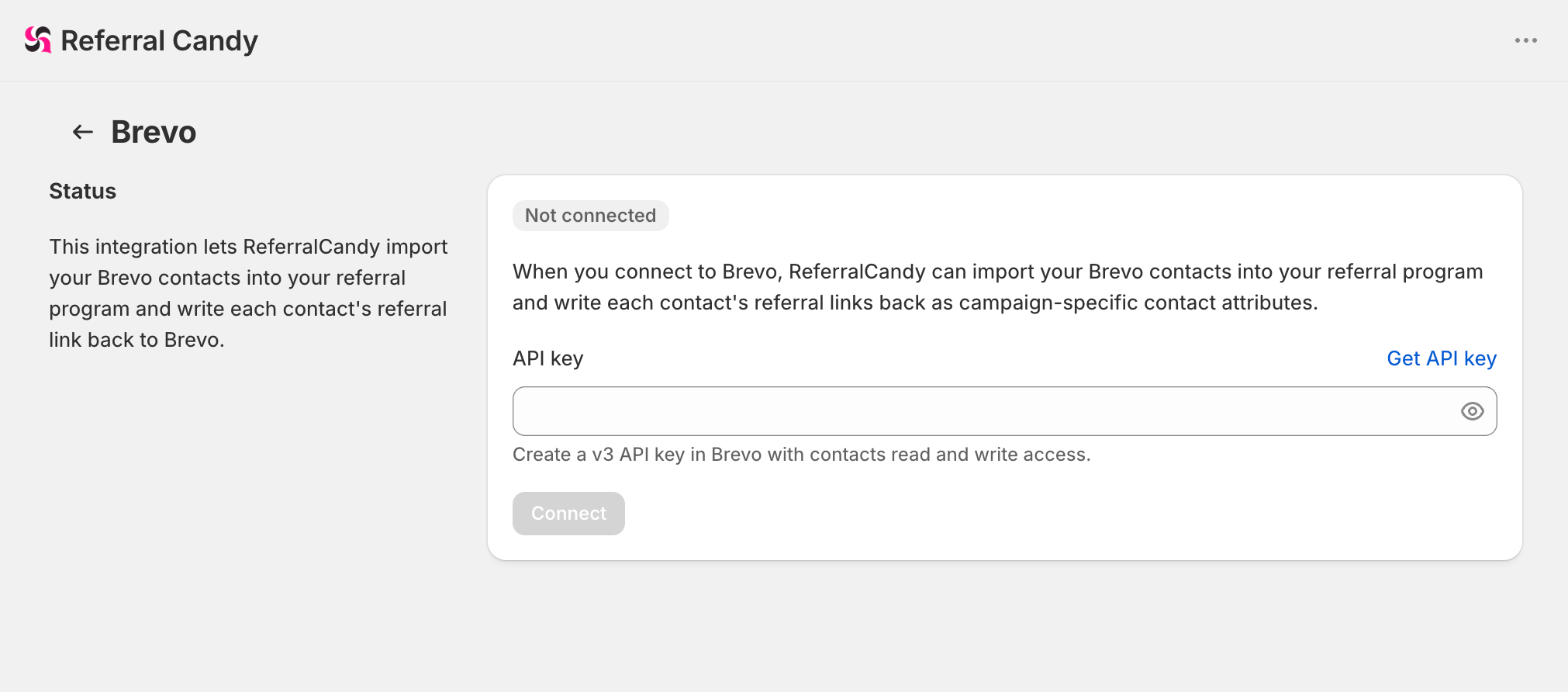
Brevo: Turn your contact lists into a referral audience
You can enroll Brevo contacts in your referral program and add their personal referral links to the messages you send.
The problem: Your referral invitations need a personal sharing link. Follow-ups also need to reflect whether an advocate has enrolled, referred a purchase, or earned a reward.
What’s new: Import all contacts, one list, or one segment. ReferralCandy creates campaign-specific link attributes in Brevo and sends referral events for your automations. Optional real-time sync enrolls contacts added to lists; segment membership changes require another manual import. Events can occasionally arrive again, so avoid duplicate reward notifications in your automations.
Access is rolling out gradually. Newly enrolled advocates receive enabled ReferralCandy emails; review your settings before importing.
How to set it up
Integrations → Brevo: Use Get API key to create a Brevo v3 key with contacts read and write access. Paste it into API key and click Connect.
Campaigns → your campaign → Emails: Turn off messages Brevo will replace. Repeat for each active campaign.
Import contacts → Import from list or segment: Choose your audience and click Sync now. Use its campaign-specific referral-link attribute in Brevo emails.
Real-time sync → Enable: Optionally enroll contacts on list additions. Your API key must have webhook access.
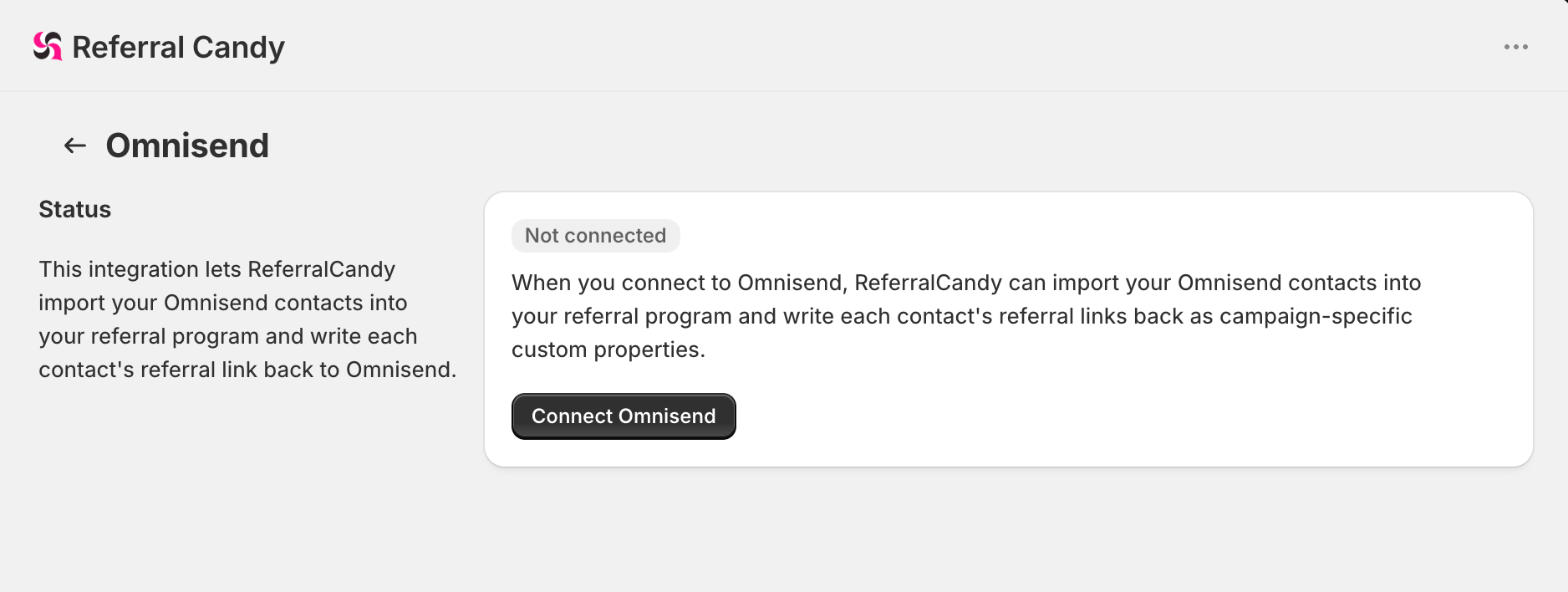
Omnisend: Bring personal referral links into your emails
You can connect your Omnisend audience to your referral program and include each advocate’s personal link in your emails.
The problem: A referral invitation needs a personal sharing link. Your follow-up messages also need to reflect whether someone has enrolled, referred a purchase, or earned a reward.
What’s new: Import all Omnisend contacts or one segment into ReferralCandy. ReferralCandy writes campaign-specific link properties to Omnisend and sends real-time referral events for your automations. Optional real-time sync enrolls new marketing subscribers; it requires a store-connected Omnisend account and a plan that supports webhooks.
Access is rolling out gradually. Contact support if the Omnisend tab is missing. Newly enrolled advocates receive enabled ReferralCandy emails; review those settings before importing.
How to set it up
Integrations → Omnisend → Connect Omnisend: Approve access in Omnisend; no API key is needed.
Campaigns → your campaign → Emails: Turn off messages you want Omnisend to replace. Repeat for each active campaign.
Import contacts → Import from segment → Sync now: Choose All contacts or a segment, then use the campaign-specific referral-link property in Omnisend.
Real-time sync → Enable: Optionally create the managed automation for new marketing subscribers.
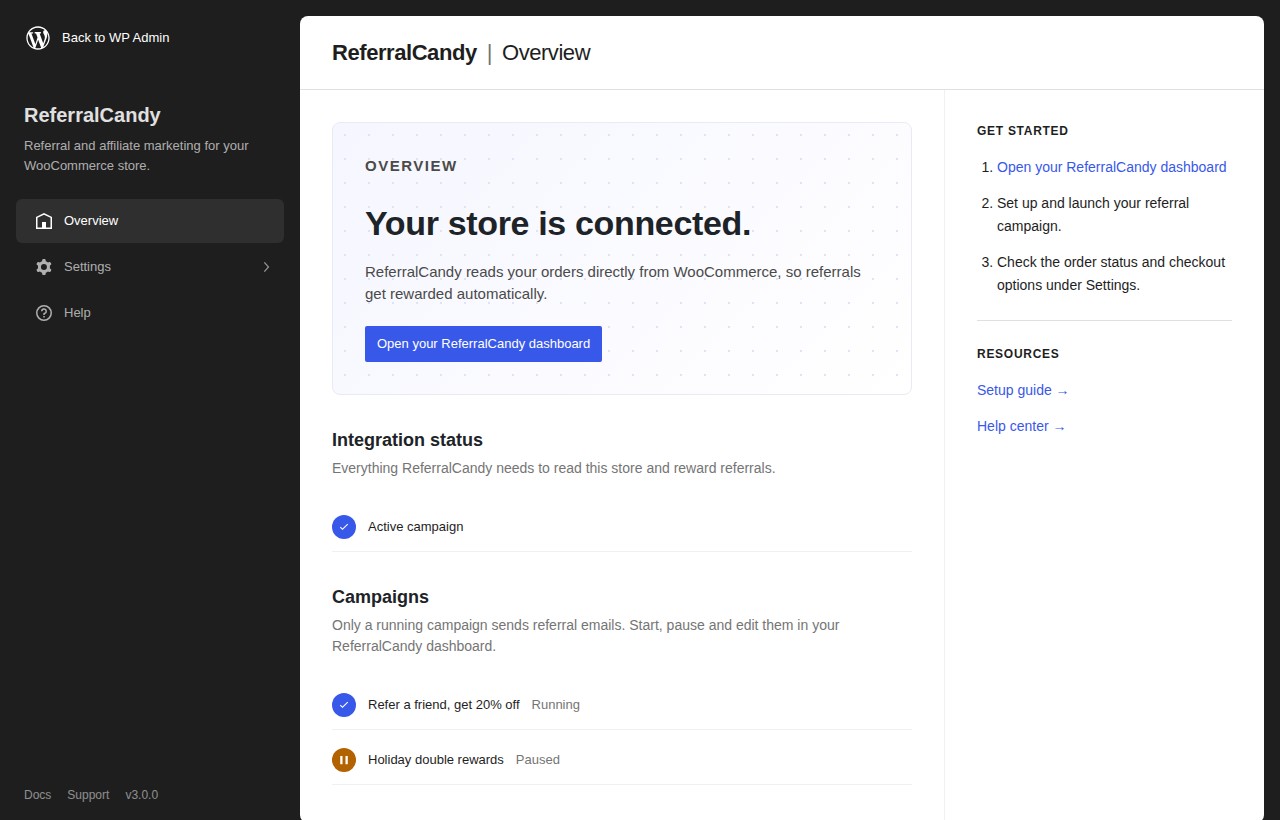
WooCommerce plugin 3.0: One-click connection, no API keys
WooCommerce merchants can now connect their store to ReferralCandy with a single approval—no API Access ID, App ID, or Secret Key to copy and paste.
One-Click Connection — Approve ReferralCandy once inside WooCommerce to create or link your account and connect your store
Direct Order Sync — ReferralCandy now reads orders directly from WooCommerce instead of relying on the plugin to push them
Safe Upgrades — Existing 2.x merchants can update without disruption; their current API keys and settings keep working until they choose to reconnect
Version 3.0.0 is live on WordPress.org for stores running WooCommerce 9.0.1 or newer.
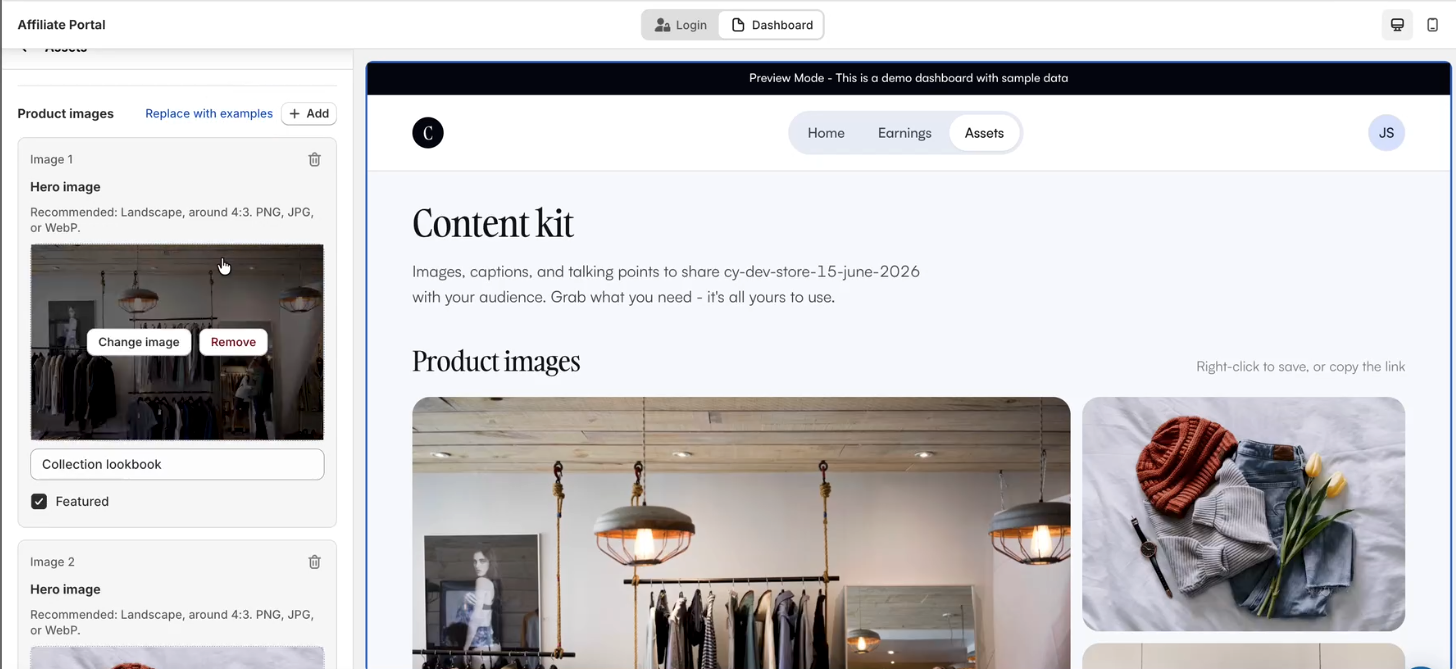
New Assets Page for the Affiliate Portal
Merchants with affiliate campaigns can now provide affiliates with ready-to-share marketing assets directly within the Affiliate Portal.
Ready-to-Share Content — Publish branded images, captions, and talking points for affiliates to use in their promotions
Draft & Preview — Build and preview assets in the Theme Editor before making them live
One-Click Publishing — Enable the Show Assets Page toggle to instantly publish assets to affiliates
This update is available to merchants running affiliate campaigns.
New Join Block v2 for Shopify Themes
Shopify merchants can now use the new Join Block v2, replacing the legacy Join Blocks 1–4 with a more flexible, customizable, and performant experience.
Campaign Selection — Choose the campaign directly within the block instead of assigning it to one of four fixed legacy blocks
4 Built-in Layouts — Select from Stacked, Card, Hero, or Inline Strip to match your storefront design
More Customization — Configure content and styling for every advocate state, including pre-signup, post-signup, share, unenrolled, and waitlist
Better Performance — Built as a native Shopify Theme App Extension for faster loading and minimal impact on storefront performance
Backward Compatible — Existing Join Blocks 1–4 continue to work as-is but are now deprecated and will no longer receive updates
This update is available to Shopify merchants using Online Store 2.0 themes. (Vintage and some custom themes do not support Theme App Blocks.)
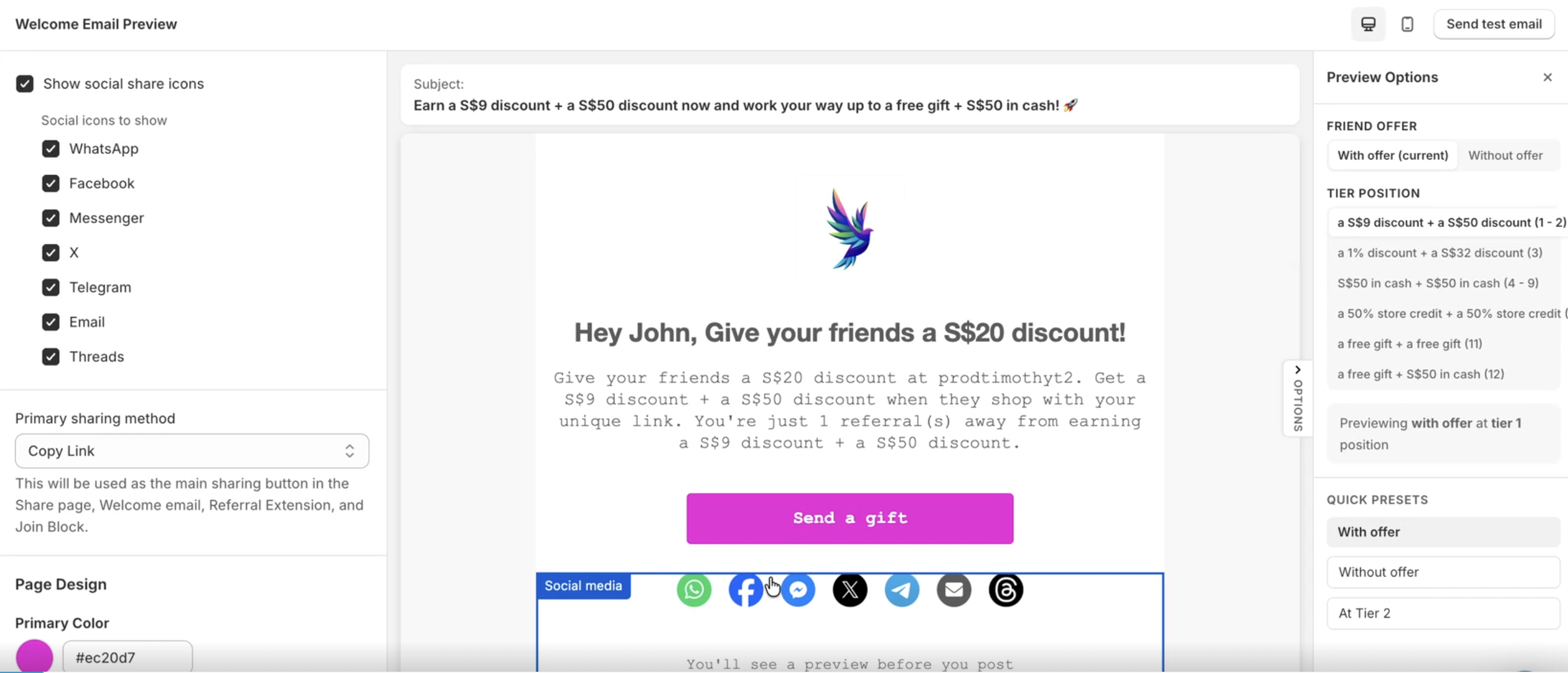
Custom Social Icons for Marketing Emails
Merchants can now choose which social media icons to display in their marketing emails sent to advocates and affiliates.
Per-Email Configuration — Select specific social icons for each marketing email individually
Supported Email Types — Available across Welcome, Reminder, Winback, Referral Progress, Reward Pending, and Reward Successful emails
More Brand Control — Display only the social channels that are most relevant to your brand and audience
Merchants can now customize the social media icons shown in their advocate and affiliate marketing emails on an email-by-email basis.
Shipping Address Display for Shopify Self Referrals
Shopify merchants can now view the shipping address associated with self-referral orders directly within the Self Referrals page.
Shipping Address Visibility — Displays the order's shipping address to help merchants review potential self-referrals more quickly
Faster Fraud Review — Makes it easier to compare shipping details when investigating suspicious referrals
Privacy Focused — Shipping addresses are retrieved from Shopify and displayed for review only; they are not stored by ReferralCandy
Shipping addresses are now displayed for Shopify self-referrals, helping merchants investigate suspicious referrals more efficiently without storing customer address data.
Hide Social Icons in Marketing Emails
Merchants can now choose whether to display social sharing icons in their marketing emails sent to advocates and affiliates.
Show or Hide Social Icons — Control whether social sharing icons appear in each marketing email
Supported Email Types — Available for Welcome, Reminder, Winback, Referral Progress, Reward Pending, and Reward Successful emails
Welcome Email Update — If a different primary sharing method was previously selected, it will automatically switch to Copy Link when social icons are hidden
Merchants can now hide social sharing icons from advocate and affiliate marketing emails, with the Welcome email automatically using Copy Link as the primary sharing method when needed.
Advocate Portal Now Default for New Merchants
New ReferralCandy merchants now have the Advocate Portal enabled by default, replacing the separate Share and Rewards pages previously used by advocates.
Single Column — Combines sharing and rewards into one streamlined advocate experience
Faster Sharing — Referral links and invite codes are available directly on the login screen for quicker access
Reward-Focused Experience — Highlights multiple reward types, including coupons, cash, and store credits, in a unified dashboard
The Advocate Portal is now the default experience for new merchants, replacing separate Share and Rewards pages with a faster, unified dashboard.
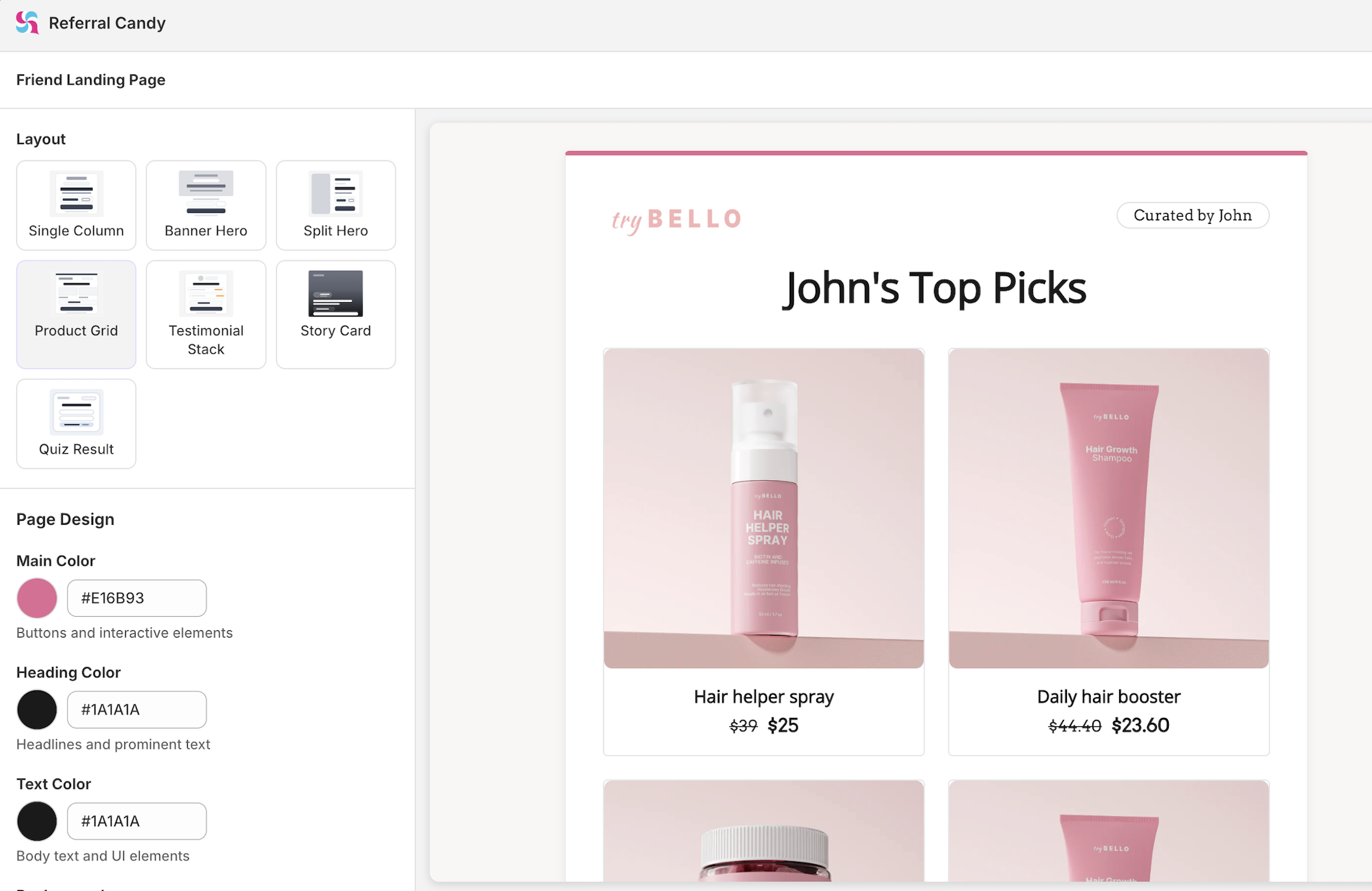
New Layouts for Friend Offer Landing Page
Merchants now have 7 new layouts for the Friend Offer Landing Page (FOLP). These new layouts are designed to support different merchandising and storytelling styles:
Single Column — Simple, focused layout that presents the referral offer in a single vertical flow, ideal for minimal and distraction-free experiences
Banner Hero — Top-banner-led layout that highlights the offer with a strong visual header, great for grabbing attention quickly
Split Hero — Two-column layout that pairs visuals with offer details side-by-side, perfect for balancing imagery and messaging
Product Grid — Clean card-based layout that showcases the referral offer alongside a product grid, ideal for highlighting your catalog
Testimonial Stack — Social-proof-focused layout that pairs the referral offer with customer testimonials to build trust
Quiz Result — Interactive-style layout that presents the offer as a personalized result, great for quiz-driven funnels
Story Card — Full-screen, mobile-first layout inspired by social media stories, with background images and gradient overlays
All layouts are fully customizable via the theme editor (including colors, fonts, text, and images), support both enrolled and unenrolled states, and are optimized for both desktop and mobile devices.
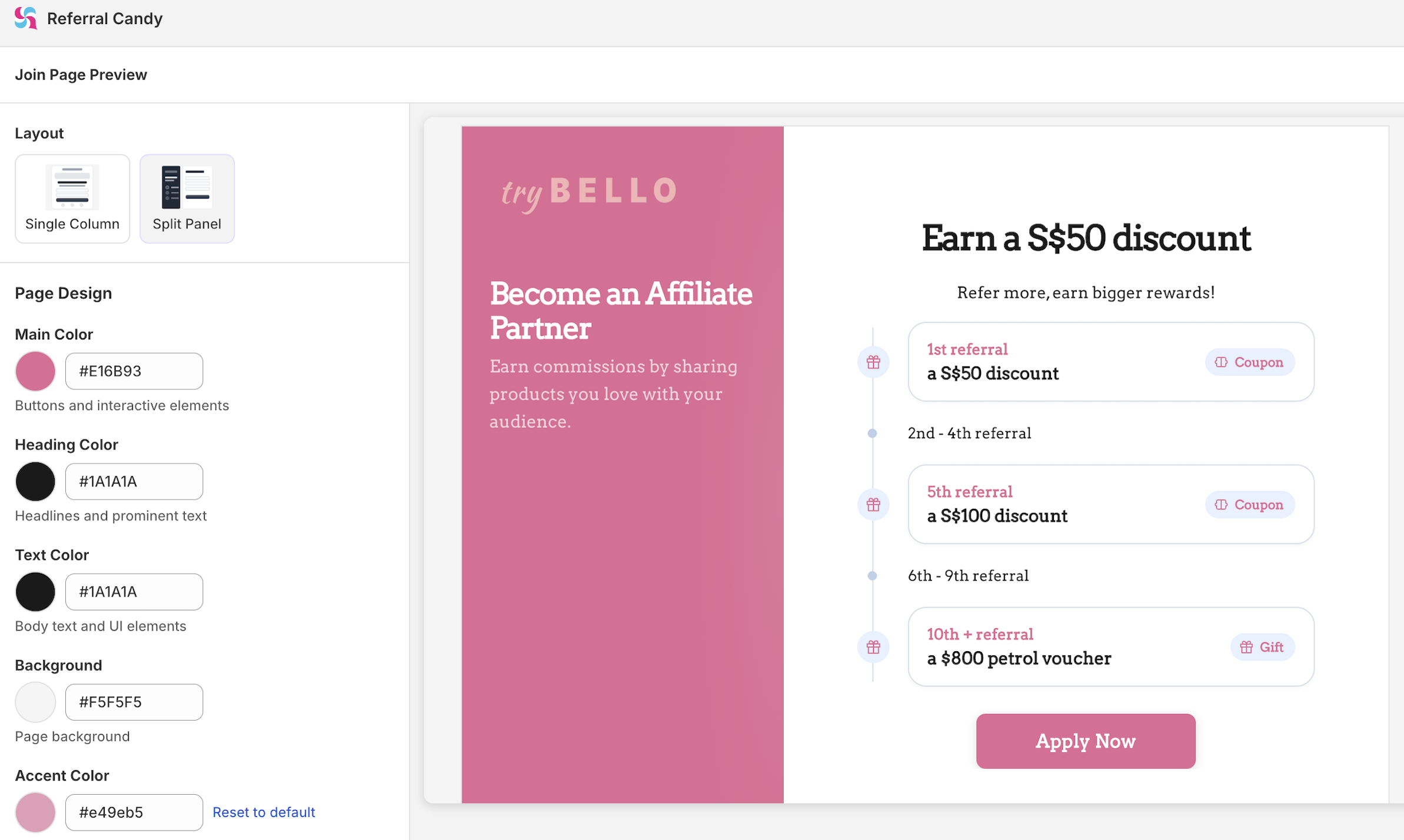
New Split Panel Layout for Join Page
Merchants now have a new split panel layout option for the Join Page, giving more flexibility in how they design the signup experience.
New split panel layout added as an alternative to the existing Join Page design
Supports building multi-step forms for a more guided signup flow
New Theme Editor for Referral & Affiliate Campaigns
Merchants now have a redesigned theme editor that consolidates all branding controls in one place. Each page (Offer Landing, Rewards, Join, Sharing, etc.) is shown as a clickable card with its own editor replacing the old single-unit theme structure.
5 color controls (Brand, Heading, Text, Background, Card) and 2 separate fonts (Heading, Body)
Click-to-edit text directly in the live preview - no separate Content tab
Preview Options panel to simulate different states: paused campaign, enrolled vs unenrolled advocate, with or without a friend offer
Desktop and mobile device preview before publishing
Favicon upload support (32×32px)
Bonus rewards for Shopify merchants
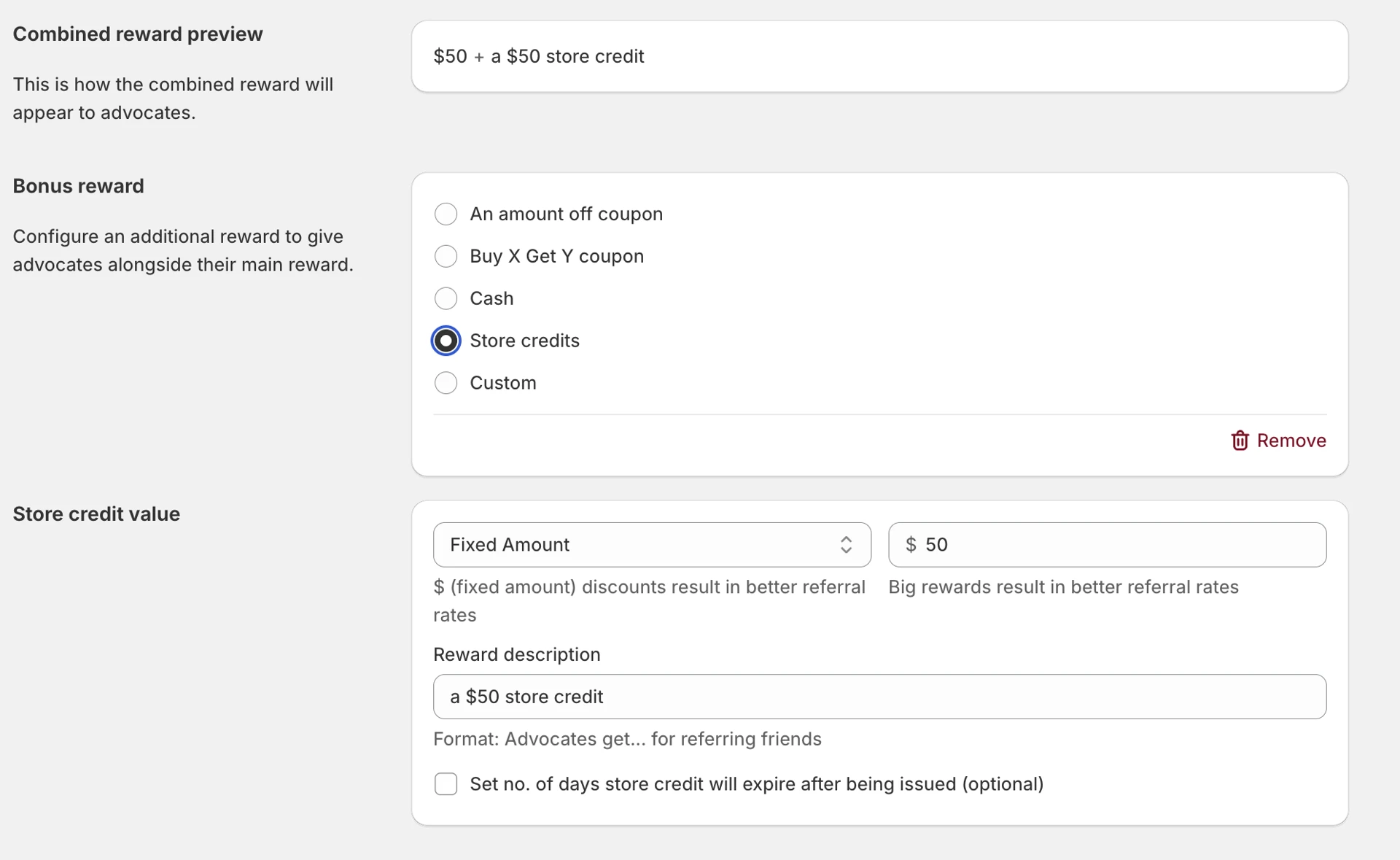
Merchants can now add a bonus advocate reward on top of their existing reward for each tier mixing and matching different reward types.
Combine different types: e.g. 15% coupon + $20 store credit
Combine same types: e.g. $50 cash + $20 cash
Applies to both referral and affiliate campaigns
Multi-currency payouts for Tremendous and Manual CSV
Shopify merchants using Tremendous or Manual CSV cash payouts can now select from 20 payout currencies, including EUR, GBP, CAD, AUD, and SGD.
This allows affiliates/advocate to receive payouts in another currency.
This affects all shopify merchants using Tremendous and Manual CSV cash payouts.
Enable privacy-protected referral links that hide advocate identities
New advocates/affiliates get random usernames, and all advocates/affiliates can generate anonymous links in one click. Existing advocates can also easily randomize their username in the portal. Opt in.
Advocates/affiliates who share links publicly, on social media, forums, communities, often hesitate because referral links expose their name.
This feature removes that barrier. More comfortable advocates means more sharing.